
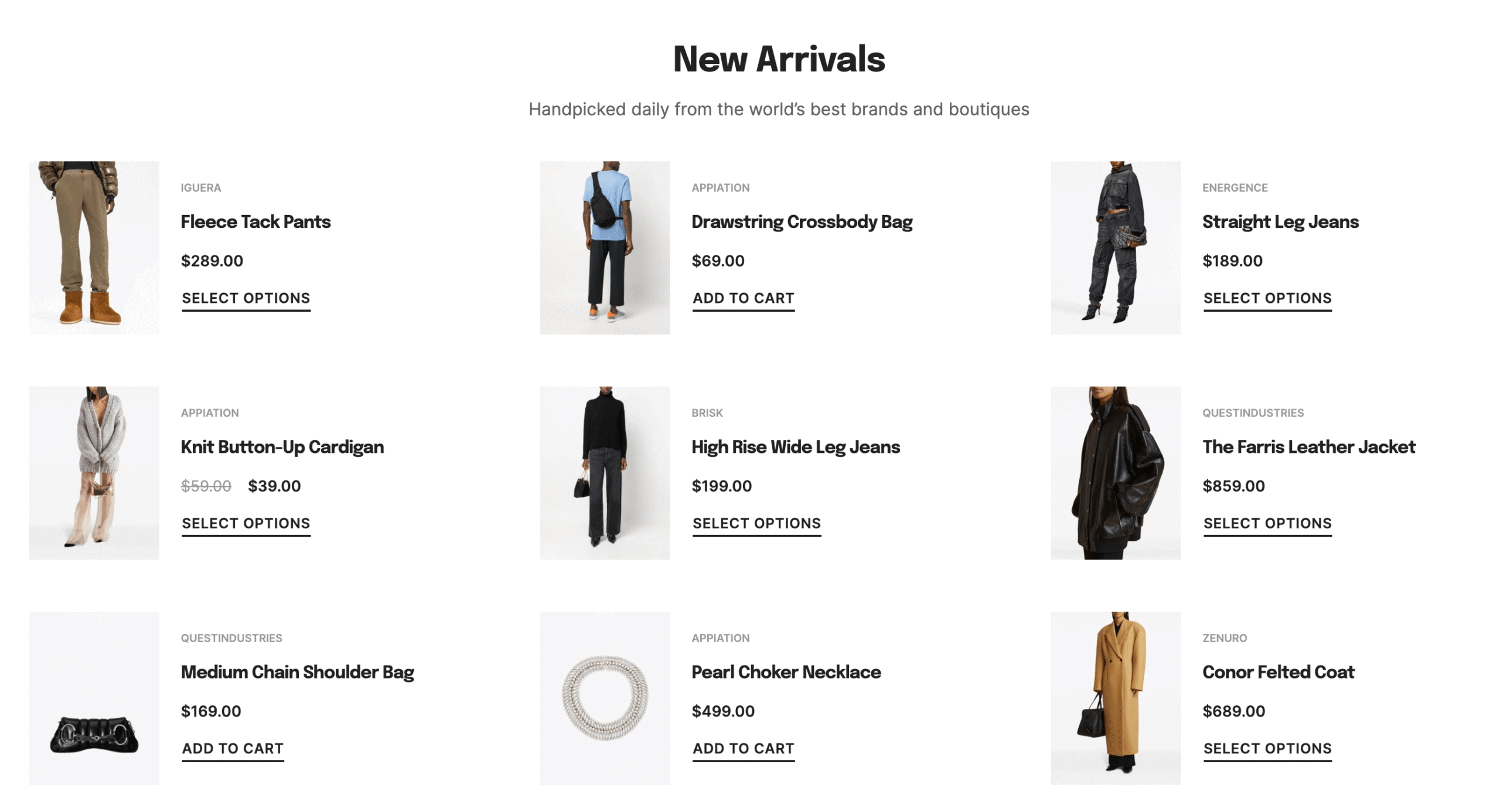
This element is designed to display products in various styles.
Available skins:
Default skin
Displays a basic list of products.
You can choose how many products per row to show and how many products to load (limit).

Carousel skin
Displays a basic list of products in the form of a carousel. You can choose how many products (slides) to show and how many to scroll at once.
Accessing Carousel Settings section, you will notice a lot of options that can customize the functionality of the carousel.
Adding custom navigation:
You can add a custom navigation (either arrows or bullets) using the Slider Navigation element.
First you’ll need to access the Products Grid element, access the Carousel settings section and copy the Carousel Unique ID code.
Paste this unique ID into the Slider Navigation element’s “Slider Unique ID” field. This will basically tell one another to be connected and in sync.
I chose this method because there’s a much bigger design freedom to have separate elements, as i can position them anywhere.
The Slider Navigation element also supports bullets eg: Beijing demo .

Mini-grid skin
Useful for listing products in a simpler compact form
Carousel Section skin
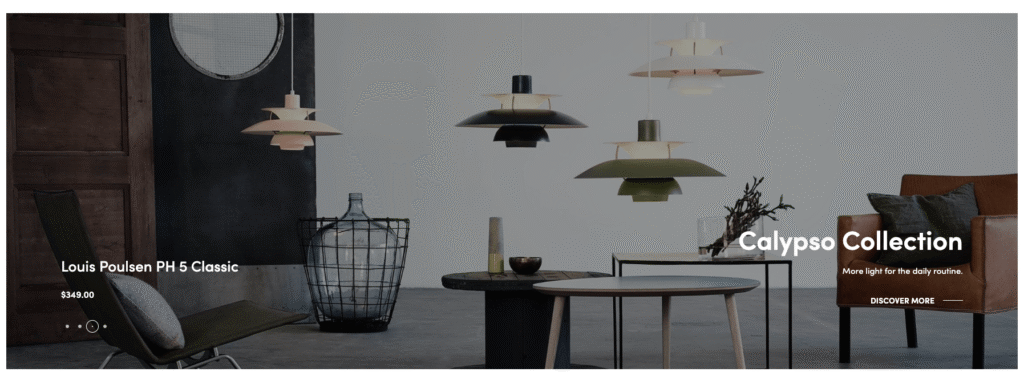
This awesome skin is meant to display products, but with their images embedded into the parent’s section background, as a slideshow.
As seen in the example below, the product’s information (title, price and buttons) on the left, while on the right, there are completely different elements, that are added in this section, into another column.
Here’s a quick demo how to add this element with this skin recording .
Additional settings
Image size:
You can force a different image size for the products thumbnails. This is highly useful for Carousel Products skin to load a full image (or at least large enough).
You can force a different image size for the products thumbnails. This is highly useful for Carousel Products skin to load a full image (or at least large enough).
Products query
In this options section you can customize the query to show only the products that you want, sorted differently, even only including or excluding some products.
Components
Enable or disable any component of the product you want.
Adding custom data in the product card
Using Elementor to build the product card
Build your own product card in Elementor with a Card global section, then pick it in this element in Style › General Styles, with Product Item Skin set to Loop Template (Card Global Section). The steps, including working Add to Cart, Quick View and Wishlist buttons, are in Custom product cards (Card Global Section).
In case you want to build custom product archives (categories, brands etc) with Elementor, you can use Rey’s Custom Templates. You can find more information about Custom Templates here .
ACF and some custom code
An alternative to include some custom information inside the product card, for example before or after the title, you can:
- Create a custom ACF field ex recording .
- Paste this code snippet from below inside the child theme’s functions.php. The field content should render after the title.
add_action( 'woocommerce_after_shop_loop_item', function(){

	if( ! class_exists('ACF') ){
		return;
	}

	if( ! (($product = wc_get_product()) && $product_id = $product->get_id()) ){
		return;
	}

	if( ! ($my_field = get_field('the_field_name', $product_id)) ){
		return;
	}

	printf('<div class="custom_field_desc">%s</div>', $my_field);

}, 5);Show comments and replies (closed)Hide comments and replies
Left here between 2021 and 2022, when comments were open. The answers were written then and may describe a version of Rey that has changed since.
Hi Boris. To be able to display the grid header, it will require some extra options to be enabled eg: [link no longer available] . Hope it helps!
Hey! Is there any way to put discount percentage badge over grid's thumbnail? Like how you have for stock, SKU etc. options. Want to show discount percentage tag in a similar way. Thanks!
Hey!
I see. Can you check the price/discount settings in Customizer > WooCommerce > Product catalog - Components eg: [link no longer available] ? I think this should do it.
Marius
Hello,
Any way to remove the gap between the photo and the product title? Everything is set to 0, meanwhile the gap remains quite large...
Thank you,
EricaHi Erica,
Please try adding this css snippet [link no longer available] (and adjust the margin as you want) into Customizer > Additional CSS.
Hello, when i use custom product archive template for shop page, grid header above products cannot be shown (column switcher, sorting options etc.). It is visible only when i dont use custom elementor template, just default shop view.
Is is posible to show this element when using custom template